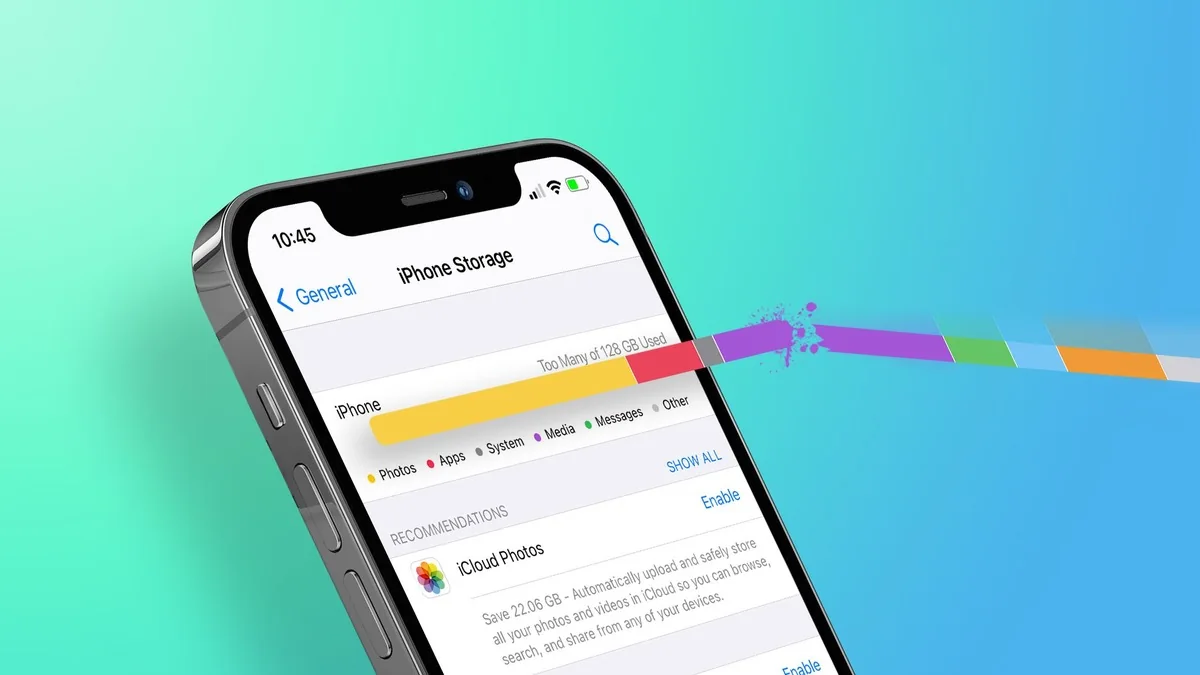
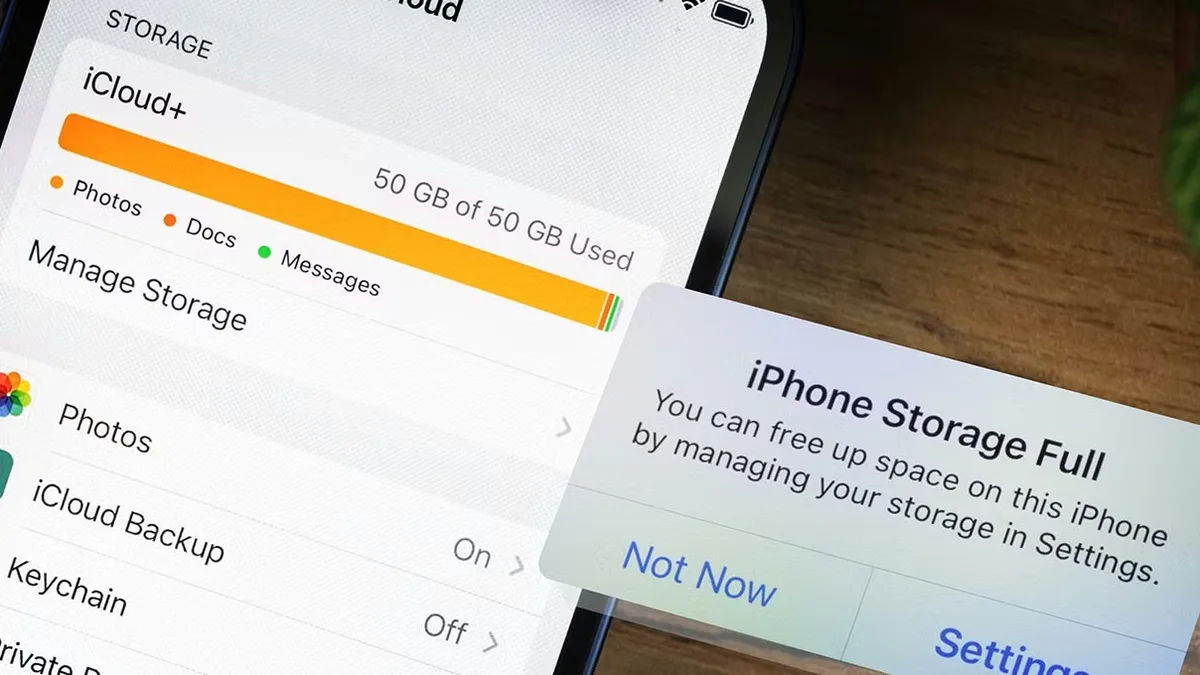
An iPhone with the free 5GB of iCloud storage fills up in about three weeks. The alert appears at the worst possible moment, usually while you are taking a photo or restoring a backup. It never explains what is eating the space.
Most people respond by paying $0.99 a month for 50GB. That works, and it is often the right answer. But before you subscribe, spend ten minutes finding out where the space went, because a surprising amount of it is junk you can remove for free.
Where the space actually goes
Photos and video dominate almost every account. That is expected, and it is not a problem by itself.
The surprise sits in two places people almost never check. The first is Messages. Photos and videos sent in group chats are stored in iCloud, and a busy thread from three years ago can quietly hold several gigabytes nobody remembers.
The Messages cleanup screen is buried but useful. Open Manage Storage, then Messages, then Top Conversations. It ranks threads by size. Delete the top one and you may free a gigabyte in a single tap.
WhatsApp deserves its own mention here. Chat backups go to iCloud with everything else. A heavy user can store several gigabytes of message history that way.
The second hiding place is old device backups. Every iPhone you have ever backed up keeps a copy in your account until you delete it. A backup from a phone you traded in two years ago can sit there at three or four gigabytes.
To find both, open Settings, tap your name, then iCloud, then Manage Account Storage. The list breaks down by app. Tap Backups and look at the dates, because anything from a device you no longer use can go.
There is a third category that Apple groups under a vague label. System Data and app caches live mostly on the phone rather than in iCloud, but they confuse people who are hunting for space. If your phone itself is full while iCloud looks calm, this is where to look.
Then there is the folder nobody visits. Recently Deleted holds your photos for thirty days before the space comes back. If you cleared a thousand pictures last week and storage has not moved, that is why. Empty it and the number drops immediately.
There is a timing trick worth knowing. Apple counts photos against your quota the moment they upload, not when you delete them. Freeing a thousand photos takes two steps. Delete them, then empty Recently Deleted.
The four ways out
Once you know what is using the space, the options become obvious. There are four, and they are not mutually exclusive.
- Clean it up (free). Delete old device backups, empty Recently Deleted, and clear the largest message attachments. On most free accounts this alone buys several months.
- Pay for 50GB ($0.99 a month). Twelve dollars a year covers every device in your house and runs without you thinking about it. Often the right answer.
- Move photos somewhere you own. Google Photos, OneDrive, a drive on your desk, or a NAS. Below about 3TB, paying Apple or Google usually wins; a NAS suits a large library and a taste for tinkering.
- Keep a local library only. Turn off iCloud Photos and store full-resolution photos on the phone. This frees the cloud, but the photos then live in exactly one place, so make a second copy first.
The first is cleanup, and it costs nothing. Delete the old backups, empty Recently Deleted, and clear the largest attachments out of your message threads. On most free accounts this alone buys several months.
The second is to pay, and it is worth saying plainly that this is often the correct choice. Fifty gigabytes costs $0.99 a month, which is $12 a year for automatic backup of every device you own. That is a hard price to beat.
Consider what the money is buying. Twelve dollars a year is less than one takeout order. It covers every device in your house and runs without you thinking about it. That is a fair trade for most people.
Buying storage also has a floor. The tiers move in big steps, and the jump from 50GB to 200GB is a dollar more for four times the space. If you are near the limit, skip the smallest tier.
The same logic applies to Family Sharing. If your household already shares a plan, adding a member costs nothing. If it does not, the shared plan is the cheapest upgrade available.
The 200GB tier at $2.99 covers a family through Family Sharing, and that detail matters more than the price. One plan can cover everyone in the same household, with each person still getting a private space of their own. If two people each pay for 50GB separately, the shared plan is cheaper and larger.
The third option is to move photos off iCloud and keep them somewhere you own. I worked through the real five-year cost of local storage and the honest finding was that below about 3TB, paying Apple or Google usually wins. A NAS makes sense for a household with a large library and a taste for tinkering.
The fourth option is the most misunderstood. You can turn off iCloud Photos and keep a full local library on the phone instead. That frees the cloud space, but the photos then exist in exactly one place.
Turning off sync is a real decision, not a storage trick. Do it only after you have a second copy. Check where that copy actually lives before you trust it.
One setting softens the choice. Optimize iPhone Storage keeps smaller versions on the device and full-resolution originals in iCloud. It reduces local usage, not cloud usage, so it helps with a full phone and does nothing for a full account.
If you shoot video, the math gets brutal fast. A minute of 4K footage takes about 400MB. Ten minutes is most of the free tier gone in one afternoon.
Shared Albums are worth knowing for the same reason. Photos in a shared album do not count against your storage the way personal library photos do. It is a poor archive and a fine way to share a trip.
Then there is the family question. Anyone in a Family Sharing group can use the shared iCloud+ plan. The extras include the private relay and disposable email addresses.
Here is what actually happens when the account fills up. Nothing dramatic. Photos stop syncing across your devices. Device backups stop running in the background. Mail at an iCloud address may stop arriving.
But the silence is the real problem. The alert tells you the storage is full. It never tells you that your phone has gone six weeks without a backup.
And a full account does not delete anything. Your photos stay on the phone. Your apps keep working. It is an inconvenience rather than a disaster.
One more check before you pay. Open Manage Storage and look for apps you forgot were syncing. Notes, voice memos, and old scans add up. Export them once and delete the cloud copy.
One habit prevents the whole problem. Check the storage screen every few months rather than waiting for the alert. Two minutes of attention beats a sudden failure.
Nothing here requires a subscription to Apple. You can move photos to Google Photos, OneDrive, or a drive on your desk. The only cost is the time to set it up and the discipline to keep it running.
Then decide and stop thinking about it. Cleanup buys a few months. Paying buys peace of mind. Local storage buys control, along with a maintenance job you have to keep.
And if you do decide to pay, check the other iPhone settings you are probably leaving on default, because storage pressure and blurry photos come from the same habit of never opening Settings.
One thing to ignore. The upgrade prompts from Apple are not urgent. Nothing gets deleted when you run out of space. Decide on your own schedule rather than theirs.
So run the checklist in order. Backups first. Messages second. Recently Deleted third. Then decide.