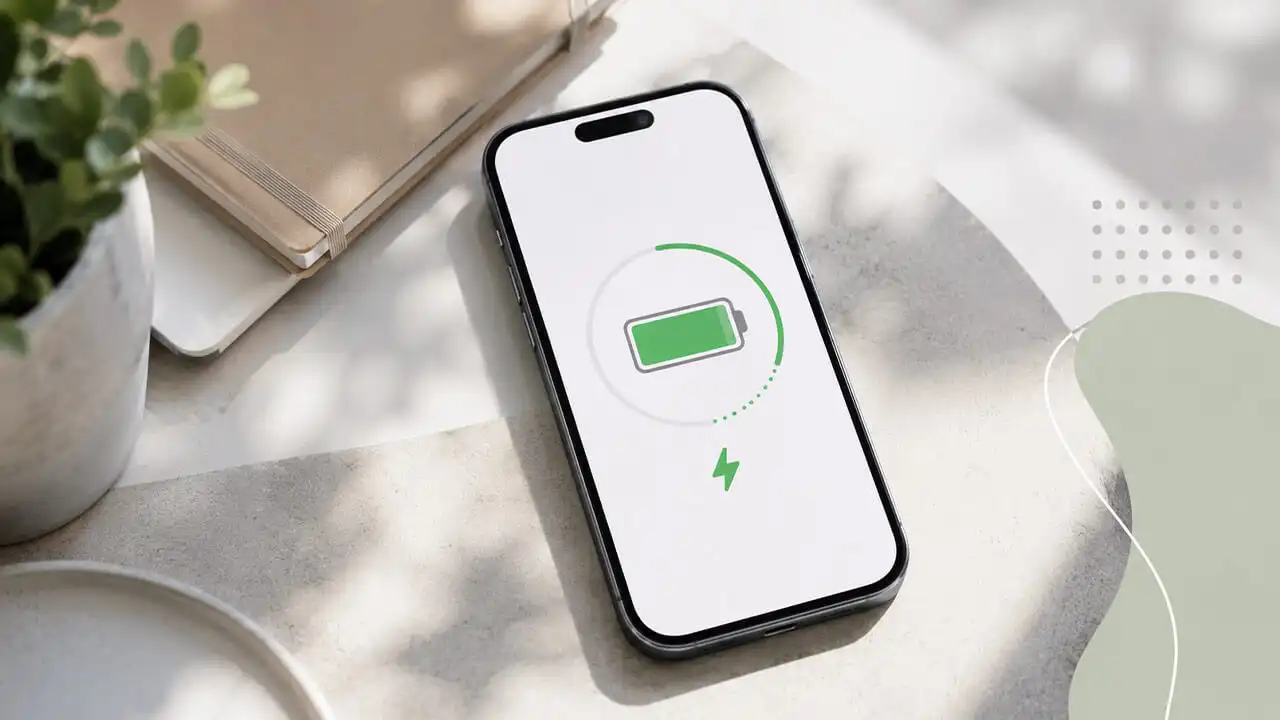
I checked my battery health last week. 91%. Not bad, right? But my phone was dying by 3 PM. Every single day. I wasn’t gaming or editing video. Just scrolling, texting, taking some photos. Something didn’t add up.
So I went down the rabbit hole. Read through Apple’s support docs, watched a bunch of videos, tested things for a few days. Turns out, battery health isn’t the whole story. There’s a lot of stuff running in the background that you probably forgot about. I certainly did.
Here’s what I found. And yeah, I tried all of them.
Adaptive Charging? Wait, It’s Called Adaptive Battery Now.
iOS 26 added this thing called Adaptive Battery. Basically, the system watches how you use your phone and adjusts things automatically. It dims the screen a little when it thinks you don’t need full brightness. It slows down background activity. And when you hit 20%, it flips on Low Power Mode for you.
I didn’t have to do anything. Which is nice. But if you’re on an older iPhone — anything before the 17 series — you have to turn it on yourself.
Path: Settings > Battery > Power Mode > Adaptive Battery.
Honestly? I turned it on and forgot about it. That’s the point.
Background App Refresh Is a Silent Killer.
This one got me. I had like 40 apps installed. And almost all of them were set to refresh in the background. Why? I don’t know. I never thought about it.
But here’s the thing: every time an app wakes up to check for new data, it uses power. Not a lot. But 40 apps doing that all day? That adds up.
I went through the list and turned it off for everything except messaging apps. LINE, WhatsApp, iMessage — those stay on. Shopping apps? Games? Video players? They don’t need to update when I’m not looking at them.
Path: Settings > General > Background App Refresh.
I cut my background activity by maybe 70%. Didn’t notice any difference in how my apps worked. But my battery lasted longer.
Low Power Mode Isn’t Just for Emergencies.
I used to wait until the 20% warning popped up. Then I’d panic and turn it on. But that’s backwards.
If you know you’re going to be out all day — concert, road trip, shooting a bunch of video — just turn it on from the start. Low Power Mode reduces background updates, stops automatic downloads, turns off some visual effects, and dials back the CPU.
I tested this on a day trip last weekend. Started the day at 100%, turned on Low Power Mode right away. Made it to 9 PM with 15% left. Normally I’d be reaching for a power bank by 5.
Path: Settings > Battery > Low Power Mode. Or just swipe down to Control Center and tap the battery icon.
Location Services: Why Does Every App Need to Know Where I Am?
I opened Settings > Privacy & Security > Location Services and almost laughed. Half the apps on that list were set to “Always.” Why does my weather app need my location all the time? It only needs it when I open it.
Went through every single app. Changed most of them to “While Using.” Turned off “Precise Location” for the ones that didn’t need my exact address. Maps needs it. Food delivery needs it. My shopping apps? Not so much.
This helped two ways: better battery, better privacy. Two birds.
Always-On Display. Cool Feature. Battery Hog.
I actually like the Always-On Display. It’s nice to glance at my phone and see the time, widgets, notifications. But it keeps the screen running constantly. And the screen is the biggest battery drain on any phone.
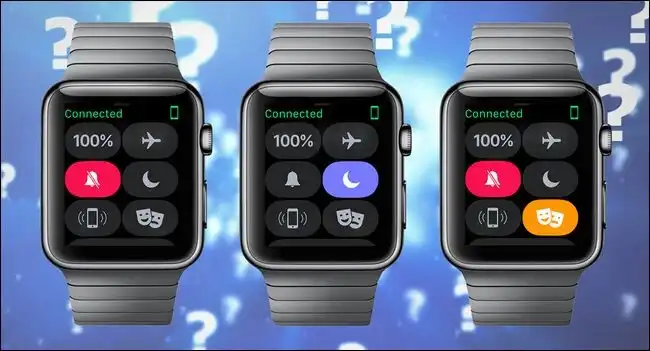
On days when I know I’ll need extra juice, I turn it off. It’s not a huge difference — maybe 5-10% over a full day — but every bit counts. Apple Watch has the same trade-off, and there’s a setting there most people never touch.
Path: Settings > Display & Brightness > Always-On Display > toggle off.
120Hz Is Smooth. But Do You Need It All the Time?
ProMotion is great. Scrolling feels like butter. But higher refresh rate means more power. If you’re not gaming or watching high-frame-rate content, you probably don’t need 120Hz running all day.
There’s a setting to cap it at 60Hz. I turned it on during a long travel day. Did I notice? A little. Scrolling wasn’t quite as silky. But my phone lasted longer, and that mattered more.
Path: Settings > Accessibility > Motion > Limit Frame Rate.
Dark Mode. Yes, It Actually Saves Battery.
If you have an OLED iPhone — which is most of the newer ones — dark mode saves power. Black pixels don’t light up. So the screen uses less energy when it’s showing dark colors.
I switched to dark mode full-time a while back. Not just for battery. I just like how it looks. But the battery benefit is real. Especially if you’re using your phone a lot at night or indoors.
Path: Settings > Display & Brightness > Appearance > Dark.
Notifications and Live Activities. Do You Need All of Them?
Every time a notification comes in, your screen lights up. Even for a second. Multiply that by 50 notifications a day, and that’s a lot of screen-on time you didn’t ask for.
I went through my notification settings and turned off everything that wasn’t important. Games, shopping deals, news alerts — all gone. Kept messages, calls, calendar reminders.
Live Activities are another one. They keep updating on your lock screen — sports scores, delivery tracking, music playback. Useful, but they use power too. I turned them off for things I don’t check often.
Path: Settings > Face ID & Passcode > Live Activities > toggle off.
Keyboard Haptic Feedback. Nice but Not Necessary.
I like the little tap when I type. It feels satisfying. But each tap uses a tiny bit of power. Over a day of heavy typing, it adds up.
I turned it off for a week to test. Honestly? I didn’t miss it that much. The typing experience was fine without the vibration. And I saved a little battery.
Path: Settings > Sounds & Haptics > Keyboard Feedback > Haptics > off.
iCloud Sync Over Cellular. Turn This Off When You Travel.
This one bit me on a trip last year. I was taking tons of photos and videos. And my phone was constantly uploading them to iCloud over cellular. Hot, draining, and eating through my data plan.
Now I turn off cellular sync when I’m traveling. Photos still back up, but only over Wi-Fi. When I get home, everything syncs up. No drama.
Path: Settings > Apps > Photos > Cellular Data > toggle off.
Also: Settings > [Your Name] > iCloud > iCloud Backup > Backup Over Cellular > off.
One More Thing: Check What’s Actually Draining Your Battery.
If you’ve done all this and your battery still sucks, go check the battery stats. Settings > Battery shows you exactly what’s using power over the last 24 hours or 10 days.
I found an app that was running in the background way more than it should have. Killed its background refresh and location access. Problem solved.
So here’s where I landed.
I didn’t do all of these at once. I tried a few, saw improvement, tried a few more. The biggest wins for me were Background App Refresh, Location Services, and turning off Always-On Display on long days.
Oh, and I actually covered a related iPhone setting before — something about photo quality and a camera option you might want to turn off. You can check it out here if you’re curious: Should You Turn Off This iPhone Setting? It Might Be Why Your Photos Look Blurry. Different topic, same vibe — small settings that make a difference.
Anyway. My battery lasts until bedtime now. Most days, anyway. I’ll keep tweaking and see how it goes.
Warning: Permanently added ‘[149.248.16.233]:2222’ (ED25519) to the list of known hosts.